
Be on their TV, even from far away
If your loved one's community uses Senior Streamers, you can send messages and videos to their TV, ask for a video call, and join calls from your phone. There is nothing to install and no account to create.
Getting started takes one minute
You're added to Contacts
Your loved one, or a staff member, adds you to their Contacts on the TV, with your email address and mobile number.
You get a private link
A link arrives by email and text message. It is yours alone. Save it to your phone's home screen so it is one tap away.
Send, ask and call
Open your link to send a message or video, or to ask for a video call. Call invitations arrive the same way.
What you can do
Send a message
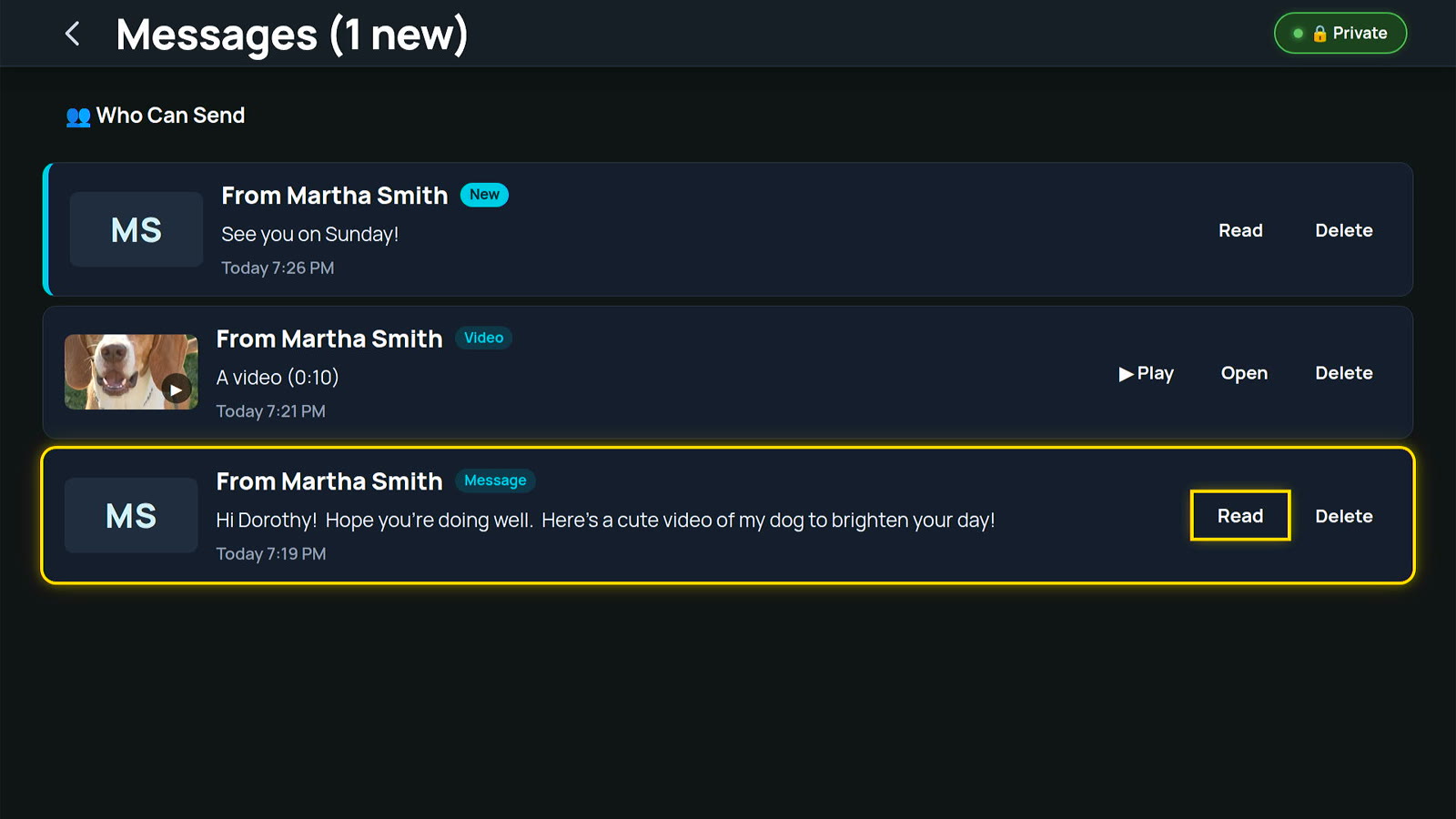
Type a note and it appears on their TV with a gentle chime. They can have the TV read it aloud, and reply with one press. You'll see their reply on your link page.
Send videos
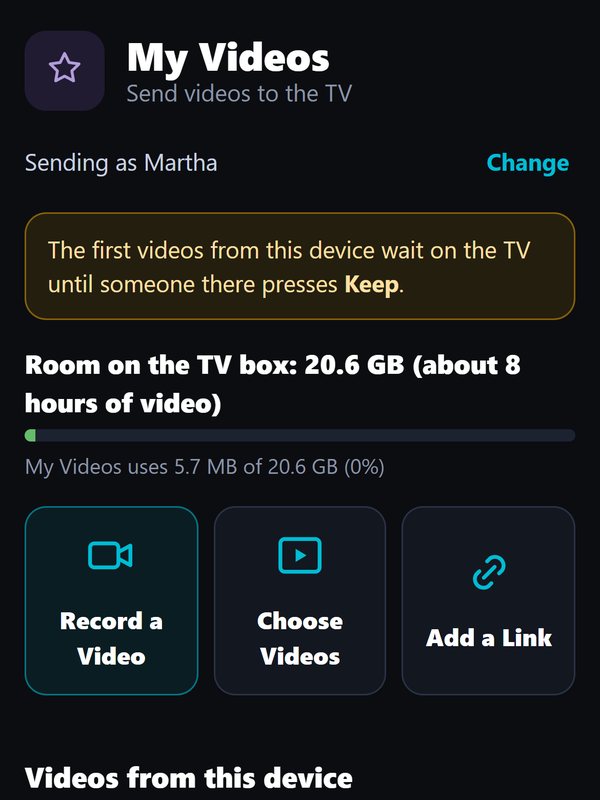
Send a video from your phone through your link page. When you visit in person, scan the code on their TV to record, choose videos, or add a link from YouTube, Dropbox or Google Drive. Videos are saved to their My Videos to watch again.
Ask for a video call
Tap "Ask for a video call" and their TV rings. If it isn't a good time, they can send you a quick answer, like "I'll call you back in a few minutes".
Join family calls
When your loved one calls you, or a call is scheduled, you get a link by email and text. Join from your phone or computer and see them on their big screen.
Help from home
If your loved one makes you a helper, you can use Remote Help to put on a show or start a playlist for them, with their permission.
Ideas that make their day
A short "good morning" video. The grandkids' recital. A photo slideshow recorded as a video. A reminder that you'll call on Sunday.
Private and safe
- Only people in Contacts can send to the TV
- Your link is personal. If it is ever shared by mistake, a new link stops the old one right away
- Messages are encrypted on the way to the TV, and our server deletes its copy once the TV has it
- New phones are approved on the TV before their videos appear
- Quiet times mean call requests wait during meals and rest
Questions families ask
Do I need to download an app?
No. Your private link opens in your phone's web browser. You can add it to your home screen so it works like an app.
I didn't get a link. What do I do?
Ask the community's staff to check that your email address and mobile number are in your loved one's Contacts, and to send your link again.
How big can a video be?
The community sets a size limit, 1 GB to start. Your phone will tell you if a video is too big before it uploads.
Can I call them any time?
You can ask for a call any time. If it is during a quiet time, like a mealtime, your request waits on the TV instead of ringing. After a "not now", you can ask again after a short wait.
Will they see my message if they're watching a show?
Yes. A notice and a gentle chime let them know something new arrived, without stopping the show. Messages wait in their Messages card until they open them.
Want Senior Streamers where your loved one lives?
Tell their community about us, or ask us to reach out. We'll take it from there.